Using Field Mappings we have enabled mapping a virtual Google Contact entity to entities within iFreeTools database and use these Field Mappings to integrate with Google Contacts, with the help of Google Contacts API.
iFreeTools CRM will have out-of-the-box native field mappings defined for Contacts, Leads and Vendors. You can also add Field Mappings for your custom entities in iFreeTools Creator, to enable importing / exporting the contact details in your custom database tables.
When Field Mapping is not found for an entity with an email-id field in iFreeTools Creator, you will find a button to Enable import from Google Contacts, below the list views. Clicking on the button will take you to the Field Mapping form. Such a form loaded for mapping Owner entity in our sample database app over iFreeTools Creator is shown below. If the field names match the fields will be mapped by default, like the Notes field as shown in the below image..
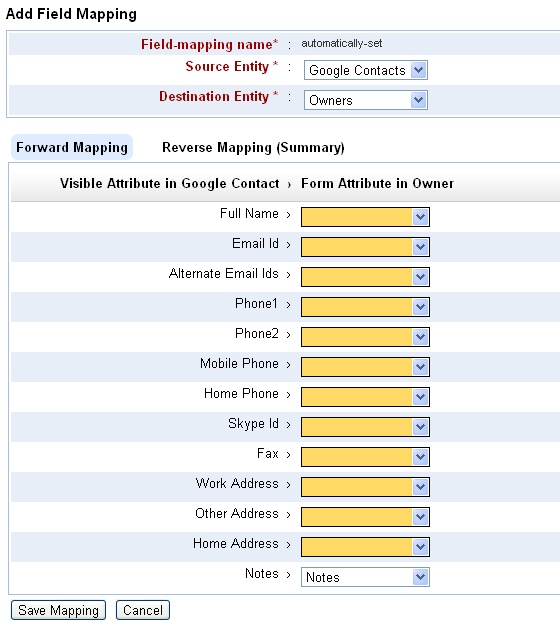
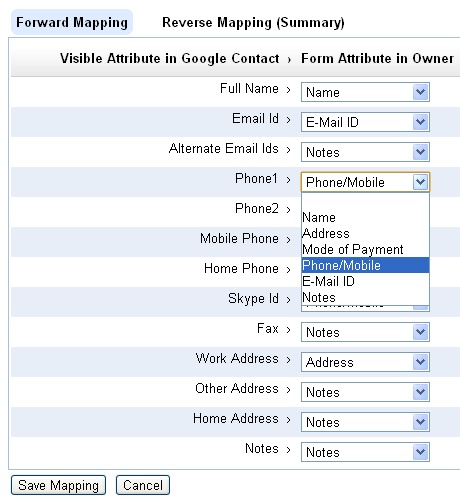
You can proceed to complete further mapping of the fields. You can store value from more than one field into the same field. For example, Phone/Mobile will be the destination for Phone1, Phone2, Mobile Phone, Home Phone and Skype Id. Similarly Alternate Email Ids, Fax, Other Address, Home Address and Notes from Google Contact have all been mapped to Notes field in Owner..
The reverse mapping view shows the details on the multiple source fields getting mapped to a single destination field..
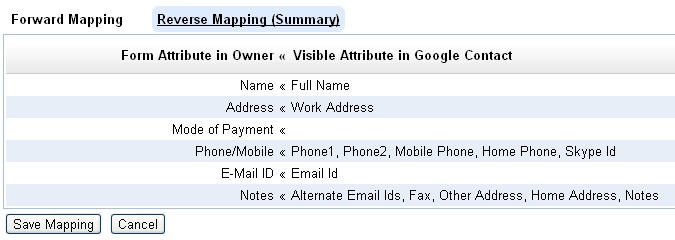
Adding such a field mapping enables importing the Google Contacts directly into the Owners database.
Like wise, it is necessary to add the mapping for exporting Owner details back to Google Contacts.
Exporting of records will be possible once you have authorized iFreeTools to connect on your behalf with Google Contacts, using its data APIs. This will be done when you try to import from the Contacts, that is clicking on Import from Google Contacts and completing the authorization step.
Once authorization step has been completed, you will find a upload icon in the list views for each of records. You can then click on them to selectively export the required records to Google Contacts. Bulk export of contacts into Google Contacts will be supported subsequently. If a contact already exists in Google Contacts, it will be over-written with the full set of details from iFreeTools, based on the field mapping for export.
Hope you like the new feature.
----
A little bit of history, leading up to this feature.
iFreeTools initially had CSV import alone and that too without field mapping. That is, the fields in CSV file are supposed to have specific set of column names expected by our import system. So, to get contacts details from Google Contacts, one had to export the Google Contacts into CSV, map the header names manually in the CSV file and them import them into iFreeTools.
While our initial feature was good enough to help enable import process, we wanted to make things easier for our users. So we added CSV import field mapping feature, to enable mapping the fields in CSV file to those in the database records, enabling CSV files with proprietary column headers to be mapped and imported easily into the database. This mapping could also be saved for reuse in subsequent imports in the same format, typically from the same source.
As all our users have a Google user account or a Google Apps user account, we wanted to integrate well with Google services, particularly Google Contacts. So, we followed up with support for importing Google Contacts using Google’s APIs, directly into the Contacts database in iFreeTools CRM.
To import the contact details using Google APIs into some other database table - may be Leads, Vendors, or may be into a custom database table created in iFreeTools Creator - was still not possible. Uploading contact details back into Google Contacts was also not possible, until today's feature.
We strive to keep adding new features while also improving features to make them easier, for our users. Keep sending in your suggestions on how we can make things better for you. You may use the feedback form in the application or you may send a mail to raj@sahasvat.com


