Showing posts with label Import. Show all posts

Thursday, July 31, 2014

Enabling "Import" and "Unlock any record" permissions for non-admin users

Until now, we had restricted the ability to import data (as CSV files) and the ability to being able to unlock any of the locked records, to admin users alone. Due to the nature of these operations, we believed that  such a restriction would be necessary.

Some customers wanted to enable these permissions to trusted users, but at the same time did not want to provide full admin permissions, considering those users to be in an intermediate permission level. Based on their requests, we have now made it possible to enable non-admin users to import data and to be able to unlock any records using Auth Profiles.

While Import permission will be configurable for all entities in the Auth Profile form, the Unlock any record permission will be available for configuration only for entities which have record locking enabled.


Hope you find the new features useful. Feel free to let us know your feedback on how we can make things better for you in your online database application creator

Friday, October 28, 2011

Export / Import iFreeTools Creator Applications as a single app-file

Creating an online database application using iFreeTools Creator is as easy as defining your entities, attributes and to start using it adding the users. While this allows you to create a basic database app, you can further customize it as per your requirements including by creating custom views, custom actions, authorization profiles, etc.,. And at some point you might want to create a duplication application -- may be for testing new features (which we keep rolling in based on suggestions from users) before you start using them in your main production application instance or may be to move on to your own single-tenant deployment, over your Google App Engine account.

This is easy to an extent, with regard to exporting and importing Custom Entities and All Attributes as CSV files. But, when you would like to have your additional configurations like Custom Views, Custom Actions or fine-grained Auth Profiles which you have created for your users, then the only option until now was to re-create them manually after importing the basic data-model as entities and attributes, as these configurations did not support export / import option.

Not any more. We have now made it possible for admin users to export the application as a single application file which apart from containing the Entities and Attributes details will also have the configuration details of App Settings (including re-branded app-names, logo images, time-zones, etc.,.), Custom Views and Custom Actions (both shared and user-specific), Auth Profiles and Users data.

Technical note : In case you are more technically inclined, the app-file is in JSON format, which you can open with a normal text editor, like notepad and view the contents.

For admin users, the Export App link will be available in the footer.

Once you export this application, save this file to your computer and then proceed to your new application instance. You can create new ones from under My Apps (link in the top-right and in the footer).

In the new application's home page you will find the option to import the app-file under the Import Ready-made Apps tabs.


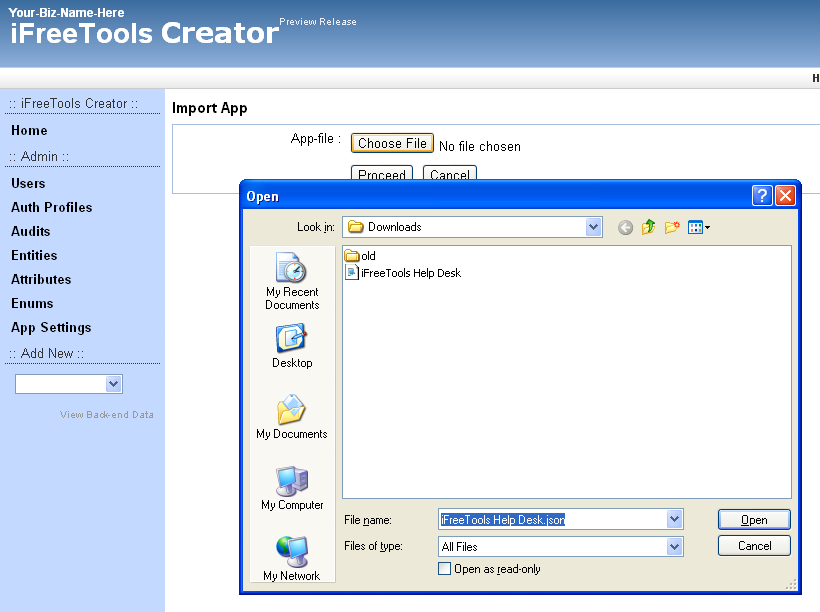
Clicking on the import the app file link will take you to a page where you can specify the app file to be imported.


Browse and select the application file which you had exported earlier and click proceed. iFreeTools Creator will now process the contents of the app-file, to automatically re-create you database application.


That is it ! Now you have a duplication application ready to use. Hope you find the new feature useful. Do keep sending in your suggestions on how we can make your online database application better and easier for you.

Tuesday, February 15, 2011

Google Contacts integration : Import-to / Export-from any database table, in iFreeTools

Having come a long way in our support for importing data into iFreeTools, today, we are glad to announce support for importing contact details from Google Contacts into any database table which has an email-id field, along with support for exporting contact details from such tables back into Google Contacts.

Using Field Mappings we have enabled mapping a virtual Google Contact entity to entities within iFreeTools database and use these Field Mappings to integrate with Google Contacts, with the help of Google Contacts API.

iFreeTools CRM will have out-of-the-box native field mappings defined for Contacts, Leads and Vendors. You can also add Field Mappings for your custom entities in iFreeTools Creator, to enable importing / exporting the contact details in your custom database tables.

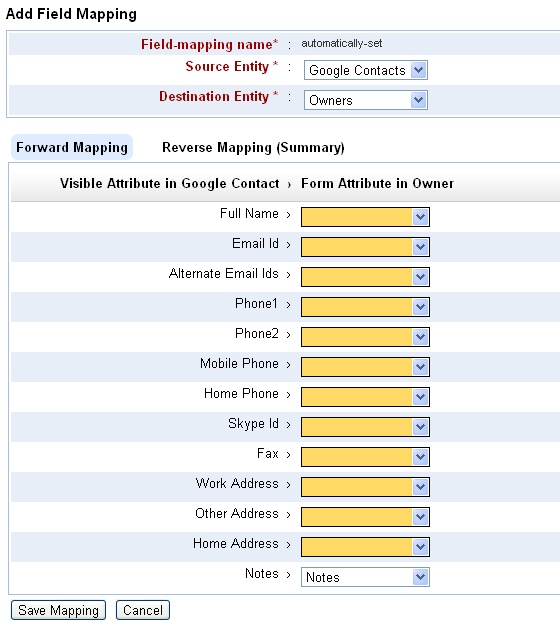
When Field Mapping is not found for an entity with an email-id field in iFreeTools Creator, you will find a button to Enable import from Google Contacts, below the list views. Clicking on the button will take you to the Field Mapping form. Such a form loaded for mapping Owner entity in our sample database app over iFreeTools Creator is shown below. If the field names match the fields will be mapped by default, like the Notes field as shown in the below image..


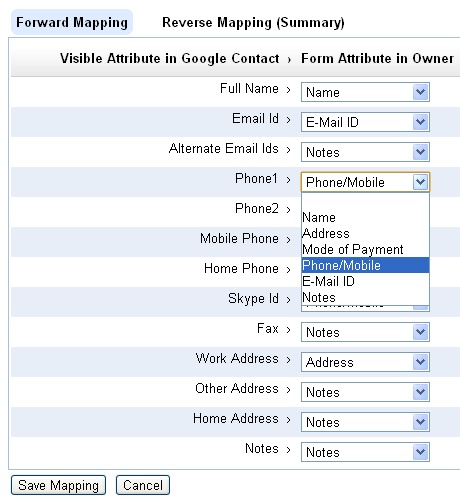
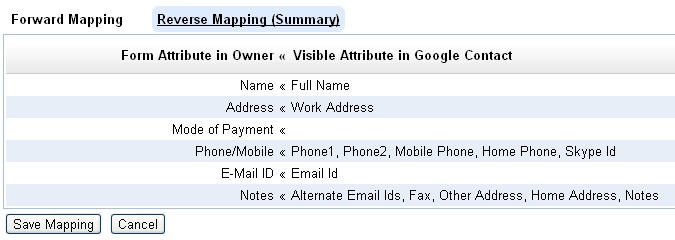
You can proceed to complete further mapping of the fields. You can store value from more than one field into the same field. For example, Phone/Mobile will be the destination for Phone1, Phone2, Mobile Phone, Home Phone and Skype Id. Similarly Alternate Email Ids, Fax, Other Address, Home Address and Notes from Google Contact have all been mapped to Notes field in Owner..
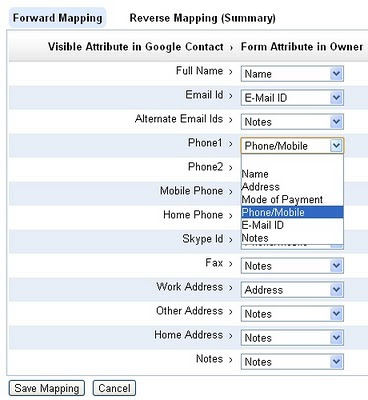

The reverse mapping view shows the details on the multiple source fields getting mapped to a single destination field..


Adding such a field mapping enables importing the Google Contacts directly into the Owners database.

Like wise, it is necessary to add the mapping for exporting Owner details back to Google Contacts.

Exporting of records will be possible once you have authorized iFreeTools to connect on your behalf with Google Contacts, using its data APIs. This will be done when you try to import from the Contacts, that is clicking on Import from Google Contacts and completing the authorization step.

Once authorization step has been completed, you will find a upload icon in the list views for each of records. You can then click on them to selectively export the required records to Google Contacts. Bulk export of contacts into Google Contacts will be supported subsequently. If a contact already exists in Google Contacts, it will be over-written with the full set of details from iFreeTools, based on the field mapping for export.

Hope you like the new feature.

----

A little bit of history, leading up to this feature.

iFreeTools initially had CSV import alone and that too without field mapping. That is, the fields in CSV file are supposed to have specific set of column names expected by our import system. So, to get contacts details from Google Contacts, one had to export the Google Contacts into CSV, map the header names manually in the CSV file and them import them into iFreeTools.

While our initial feature was good enough to help enable import process, we wanted to make things easier for our users. So we added CSV import field mapping feature, to enable mapping the fields in CSV file to those in the database records, enabling CSV files with proprietary column headers to be mapped and imported easily into the database. This mapping could also be saved for reuse in subsequent imports in the same format, typically from the same source.

As all our users have a Google user account or a Google Apps user account, we wanted to integrate well with Google services, particularly Google Contacts. So, we followed up with support for importing Google Contacts using Google’s APIs, directly into the Contacts database in iFreeTools CRM.

To import the contact details using Google APIs into some other database table - may be Leads, Vendors, or may be into a custom database table created in iFreeTools Creator - was still not possible. Uploading contact details back into Google Contacts was also not possible, until today's feature.

We strive to keep adding new features while also improving features to make them easier, for our users. Keep sending in your suggestions on how we can make things better for you. You may use the feedback form in the application or you may send a mail to raj@sahasvat.com

Wednesday, August 18, 2010

Importing Google Contacts into CRM database is now supported

We have now added support in the CRM for Google Apps - iFreeTools CRM, to directly importing Contact entries from your Google Contacts into your CRM database.

In all contacts list views, you will now have an option to "Import from Google Contacts". Clicking on this, Google will prompt you to ask if iFreeTools CRM can be allowed access to your Google Contacts. Once you provide access, you will be redirected to your list of contacts from Google Contacts, from which you could selectively mark and import into your CRM database.

You will have options to list contacts based on Contacts Groups you had assigned in Google Contacts, change the sort order (by default the latest updated entries are listed on top) and the page-size (default : 50).

If a contact is already found in the CRM database, it will be skipped during add. But you could change this behavior to either add a duplicate record or to over-write the existing record with values from Google Contacts.

The following snapshot shows the options available during import. Here "random" is one of my Google Contacts groups.


You can also preview the details of the contact, before you mark it for import. The following snapshot shows such a preview of one of the contacts..


After marking the entries you want to be added to the CRM database, you could then click on "Add Contacts". This will add the marked entries in batches, displaying you the status of the progress.

Once added, you could view these contacts in the CRM database. Apart from the standard details, additional details will be added to the Contact record's Notes attribute. Snapshot of a sample record imported from Google Contacts is given below..


By default, the user who imports the entries will be set as owner for those records. You could use the bulk-edit feature to change values as required.

Hope you find our new feature useful. Keep sending in your suggestions on how you think we can make things better & easier for you.

Wednesday, July 28, 2010

Import Field Mapping now available in iFreeTools CRM / Creator

iFreeTools CRM - the free CRM built over Google App Engine, for use with Google Apps - now supports import field mapping.

Now you can map fields from CSV files imported from other sources by providing the field mapping in an easy to use interface, instead of having to manually mapping them in the CSV file. The source can be address book from Outlook or from Google Contacts exported as CSV, or even from your old CRM/database system.

Such field mapping can be saved and reused multiple times.

To enable this mapping, the import process will now contain 2 steps. First one will be similar to the one which we had earlier, where you could provide the CSV file to be imported..


The next step will be to provide the mapping. By default, the app will try to match the fields in the CSV with the property in iFreeTools record. The unmapped fields will be highlighted as shown below..


You may now provide the mapping for all fields which you want to import into iFreeTools. You could even map multiple fields from CSV to a single field in iFreeTools. The multiple values will be joined together and stored in the property.


You can view the reverse mapping to see if you have covered all important mapping.


In CRM, if the records require an "owner" property, it will be set to the user who performs the import operation. You could later use the Bulk Edit feature to reassign owners as required.

You could also provide a name for the import field mapping, so that you could just select it from the selection box the next time you need to import a similar CSV file.

This feature is also available for custom database apps created using iFreeTools Creator.

Monday, March 22, 2010

Export / Import Data as CSV & Bulk Delete in iFreeTools CRM and Creator

A new upgrade to our Google App Engine powered CRM application and Online Database App-creator, has added support for Exporting and Importing data in CSV format, along with support for bulk-delete.

Exporting and Importing of data as CSV enables you to
  • store a backup of your data
  • import new data in bulk
  • restore back old-data at a later date, if required, from the back-up
  • take away your data at any time from our database - No vendor locks.

In this blog post, we will have an overview of this new feature, as used in iFreeTools Creator, the approach will be similar in iFreeTools CRM too.

In the default list views, there will now be an option under More Actions to Export as CSV and Import from CSV as shown below..


First export the data as a CSV file and store it locally. This file acts as a backup of the existing data and can also be used as a template to add new data.

You can use any spreadsheet application which supports editing of CSV files. We will use Google Docs for this feature preview. Use the upload option to upload the CSV file to Google Docs..


The spreadsheet will be loaded and will show the entries as present in the iFreeTools database..


We can now add / modify entries in the spreadsheet. We will add 2 new records - of which 1 record will have values in unicode (Tamil language) and update the existing records by adding some notes. The changes made to the spreadsheet are highlighted in the image below..


Now download the modified file from Google Docs, by choosing from the menu File > Download as > CSV (current sheet). Now you can upload the file to iFreeTools. Choose the Import from CSV option and specify the file downloaded from Google Docs and click on Import..


This will import the data into iFreeTools' database, as shown below..

Notice that 2 new entries have been added, with proper handling for unicode characters and that 3 existing records have been updated with notes. The status message on top also provides the details of the import.

Further changes to the imported data can be performed using the Bulk Edit feature, which was added recently.

This update also includes the Bulk Delete option, available under More Actions.

Hope you like our new features. If you face any issues or have suggestions, feel free to use the feedback form in our application.