Update (September 2016):
Google has been migrating this feature out of Google Apps to Google Cloud Console and if you domain was migrated to the latest version of Google Apps, this feature may not be available for configuration any longer.
You will still be able to go in for a paid single-tenant deployment of iFreeTools (starts at $99/year for up to 25 users), where you will get access to the Google Cloud Console of your iFreeTools deployment and can map the application to any domain (the domain need not be associated with Google Apps). |
Yet another upgrade just happened at
CRM for Google App Engine. This upgrade enables mapping of
iFreeTools CRM service to one of your sub-domains and also to configure it with simple rebranding.
Note :
The details provided here are also applicable to iFreeTools Creator, our online database app builder for Google Apps. |
Sub-domain mapping
To enable sub-domain mapping, like say http://crm.
yourdomain.com, you will require to enable Google Apps for your domain and add iFreeTools app as a service.
In the old version of the Google Apps dashboard, you can click on the
Get more apps and services link under
Common Tasks.
In the new version of the Google Apps dashboard, you can click on
Other Google Services control. If you are not seeing this control, kindly try
More Controls option at the bottom of the page.
In the Other Google Services page, click on the
Add Services icon, as shown below :
In the resulting page, add the Google App Engine service, by providing the App ID. The App ID for the 2 iFreeTools applications are given below :
- iFreeTools CRM : sahasvat-ifreetools
- iFreeTools Creator : sahasvat-ifreetools-creator
You may now proceed to configure your sub-domain, by configuring the Web address, as shown below.
You may also be required to add CNAME entries in your DNS configuration to map to
ghs.google.com. These steps are not covered here. Kindly follow steps as detailed in Google Apps.
After the web-address is configured and the CNAME entries are added, you should be able to access iFreeTools service from the configured sub-domain.
Rebranding
When you login into the application, you will see the header with default configuration having values which suggest you to make changes (currently it will be something like "Your-Biz-Name-Here")..
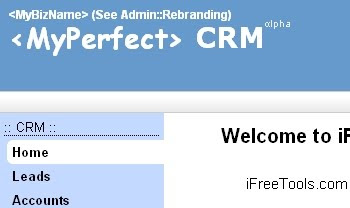
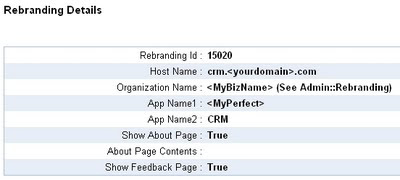
Proceed to Admin::App Settings to view the default settings currently used by the application, which will be similar to the one given below..
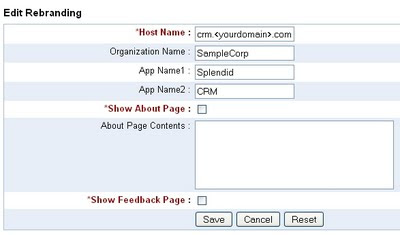
Now proceed to modify the configuration. Notice that About Page and Feedback Page have been disabled (unchecked) as part of Rebranding..
And after the modified app settings takes effect, you will see the specified names being used in the header and that the About and Feedback links are removed from the application..
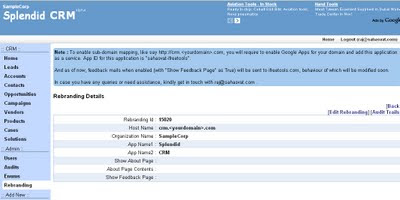
As of now, feedback mails when enabled (with "Show Feedback Page" as True) will be sent to ifreetools.com, behaviour of which will be modified soon.
Hope you like the new features.
Play with the app and feel free to send in your feedback on iFreeTools CRM.
Related :
Add Logo to your Rebranded CRM


