Friday, July 29, 2011

Date-Time and Error Functions now available for use within Expressions

Your favorite online database app builder tool over Google App Engine - iFreeTools Creator, now supports date-time functions within formula field expressions and in validation expressions.

The new date-time functions made available are listed below :


now
Usage : now ()
Description : Returns a datetime object having the current time.

date
Usage : date(year, month, day)
Description : Returns a date object for the given year, month and day values.

datetime
Usage : datetime (year, month, day, hours=0, minutes=0, seconds=0)
Description : Returns a datetime object for the given parameters. If hours, minutes and seconds are not provided, they will be taken to be 0 (zero).

timedelta
Usage : timedelta (days=0, seconds=0, microseconds=0)
Description : Returns a timedelta object representing a difference in time, for the given days, seconds and microseconds. Can be used to add or subtract date/datetime values.
Example: now() + timedelta(1) will give tomorrow's date and time.


We have also added support for raising error messages when validating values using expressions. Apart from detailing on how to enter the value for the field in the description, this function will enable you to specify the reason for the validation failing.


error
Usage : error(error_msg)
Description : Raises an error with the given error_msg. This will be shown in the form for the corresponding attribute which failed the validation expression.


We have also rolled in a new home page for iFreeTools Creator, now highlighting the important features available in the platform.


Keep sending in your valuable suggestions on how you think we can make iFreeTools better for you.

Wednesday, June 29, 2011

Expressions for Computed Formula Fields & Field Validations, now available in iFreeTools

The labs setup of the Google App Engine powered free online database apps creator, now has support for defining and using expressions for calculated formula fields and in validations.

Update : it is now available at http://creator.ifreetools.com too.

Note : When adding new formula expressions, you will need to re-index the existing records to have the formula value computed for those entries.

Formula Expressions

You can now define expressions based on values in other fields in the database record to compute the value of formula field.

For example, you might have First Name and Last Name as fields within your database record and may prefer to have them combined in another Name field. For this you can add the 3 attributes with data-type as Single line text (String) and for the Name attribute you can set the Formula Expression (under Advanced section of the attributes form) to be

val("First Name") + " " + val("Last Name")

The val function enables you to fetch the value of the field for a given display name.

The formula expressions can be set for any data-types, just make sure the return value of the expression is of the required type.

Aliases for fields

You can also set Aliases for the attributes and use them instead of the val functions, to have the formula to be something like

First_Name+" "+Last_Name

Validation Expressions

You can also define validations expressions which need to evaluate to True for the record to be stored into the database.

So, if you have a product code field and it should always be 5 characters in length, you can set the Validation Expression as

len(inputValue) == 5

For more details on the operators and functions available for use within expressions, kindly refer to Using Expressions for Formula-fields and Validations, in our user guide.


Hope you like the new feature. Do keep sending in your suggestions on how you believe we can make this app better for you.

Monday, May 30, 2011

Yes/No (Boolean) fields support in Custom Views and more

We have been making improvements over the past few weeks to the Free Online Database App Creator for use with Google Apps and in our Free CRM built over Google App Engine, based on feedback/suggestions from our users.

Filter based on Yes / No checkbox (Boolean) fields


We are glad to have rolled in support for Custom Views which can filter records based on Yes / No checkbox (Boolean) fields.

Apart from Yes or a No, you may now also see a --not-set-- value for fields which do not have a value already set for that field. This can happen in iFreeTools Creator, when you add a new Yes / No checkbox (Boolean) attribute to an existing entity which already has records in database. While the new records will have values for this field, the older records will show a --not-set-- value.

The records with --not-set-- value *will not* turn up in the results if the filed is used in the filtering criteria for that Custom View. If you would like it to be available, you can use the bulk-edit to set the values for that field to either Yes or a No.

Customize the order in which the Custom Views are listed


We have also added support customizing the listing order of Custom Views based on View Listing Index value, which you can now provide in the Add/Edit Custom View form. The views will be listed under the module based on this value, in ascending order. That is, views with smaller View Listing Index value will be listed first.

And more..


Apart from these features mentioned above, we have also rolled in a few bug-fixes/improvements, including in the recently added Calendar Views feature.

Do keep sending in your valuable suggestions, on how you think we can make iFreeTools better.

Tuesday, April 5, 2011

What's Cooking : Calendar Views in your Online Database for Google Apps

Yes, support for Calendar Views is what is cooking up at iFreeTools and it is already available in our labs deployment : iFreeTools Labs.

All records which have a date or a date-time field will now have an option to view the records in a Calendar View as shown below..


The calendar view will have options to view the records based on Month, Week or Day. The details view is also loaded via AJAX, as shown below, without you having to leave the calendar view.


The feature will be rolled into your affordable CRM for Google Apps and your favorite custom database app builder for Google Apps, in the coming days.

The current feature uses any one date/date-time field, at a time, for the Calendar View. We will be coming up with an option to specify start & end fields too, so that you can have the events span across hours and days too. And together with that you will have an option to export the data to Google Calendar in iCal format.

Hope you like the new feature. Do keep sending in your valuable suggestions.

Monday, March 21, 2011

Alphabetical indexing of database records for Quick filtering, now available in iFreeTools

We have just made an upgrade to our online database app creator and our online CRM apps, which have been built over Google App Engine for use with Google Apps.

This upgrade adds support for alphabetical indexing of database records and index links for quick filtering from the list views.


This has been enabled for the relevant fields in our default CRM application. For custom database applications built over iFreeTools Creator, you can enable them for String and Reference attributes, by editing the Attribute and selecting the indexing option, as shown below..


Multiple attributes can be configured to be indexed and they will all be available for filtering from the list views. If there are more than one alphabetical index, you will find a more.. button which you can click to view all filtering indexes.

For existing records (added to the database, before enabling the index), you will have to perform a re-indexing operation once, from under the list views More Actions > Re-Index.

Hope you find the new feature useful. Keep sending in your suggestions.

Friday, March 18, 2011

Attach Google Docs to Database Records in iFreeTools CRM & Creator

Our CRM for Google Apps and Online Database App Creator for Google Apps now support attaching of Google Docs to the records within the database.

Update :
We have upgraded this feature to support attaching any file / folder from within Google Drive. More details are available in this blog post : Attach files or folders from Google Drive to your database records.

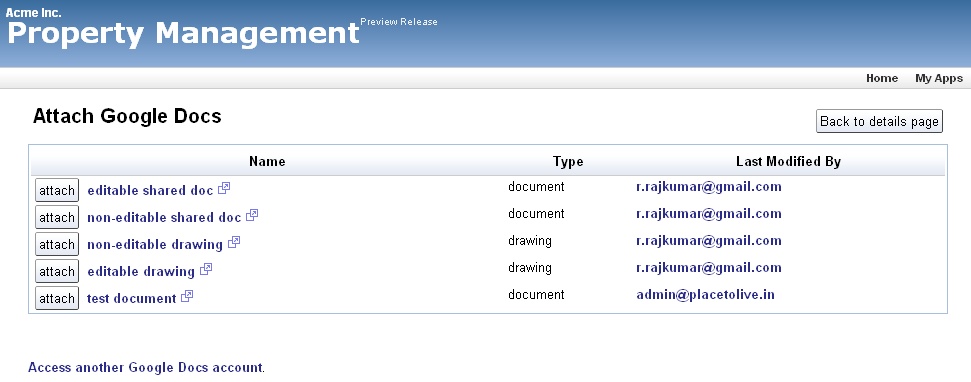
Below the record details in the details page, there is now an option to attach a file from Google Docs. When you click on the Attach a Google Document button, you will be required to authorize the Google Docs account to use, this can be a Google Docs account associated with either Google user account or with a Google Apps user account.

After authorization you can view the list of files in that Google Docs account, with details like the file name, file type and the person who last modified it as shown in the image below..


Just click on the attach button and the file will now be linked to your database record.

All such attachments will be listed below the record details, as shown below..


Attaching a file in Google Docs does not duplicate the contents, but directly links to the document in your Google Docs, making sure the latest doc can be accessed from the record.

The security settings set in the Google Docs are still applicable and you need not have to duplicate those setting again. When someone clicks on the attachment link, they are taken to Google Docs directly which handles the security settings.

Update :When attaching files from Google Docs to your records, you now have the option to search for the required file based on text, to narrow down the files and attach the required file to your record, as shown in the image below.


Hope you find this new feature useful. Keep sending in your suggestions.

Tuesday, February 15, 2011

Google Contacts integration : Import-to / Export-from any database table, in iFreeTools

Having come a long way in our support for importing data into iFreeTools, today, we are glad to announce support for importing contact details from Google Contacts into any database table which has an email-id field, along with support for exporting contact details from such tables back into Google Contacts.

Using Field Mappings we have enabled mapping a virtual Google Contact entity to entities within iFreeTools database and use these Field Mappings to integrate with Google Contacts, with the help of Google Contacts API.

iFreeTools CRM will have out-of-the-box native field mappings defined for Contacts, Leads and Vendors. You can also add Field Mappings for your custom entities in iFreeTools Creator, to enable importing / exporting the contact details in your custom database tables.

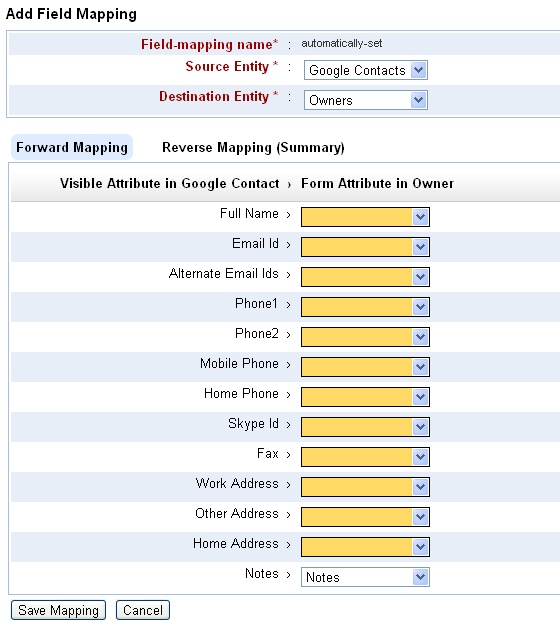
When Field Mapping is not found for an entity with an email-id field in iFreeTools Creator, you will find a button to Enable import from Google Contacts, below the list views. Clicking on the button will take you to the Field Mapping form. Such a form loaded for mapping Owner entity in our sample database app over iFreeTools Creator is shown below. If the field names match the fields will be mapped by default, like the Notes field as shown in the below image..


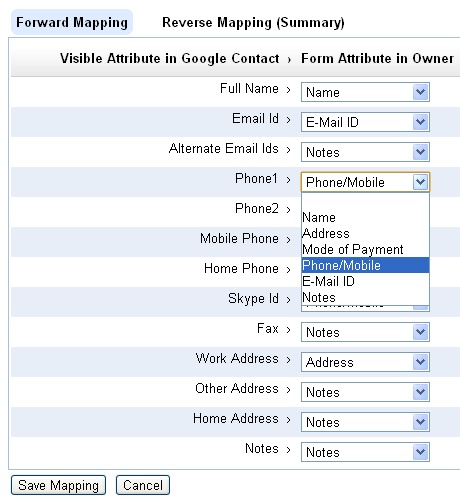
You can proceed to complete further mapping of the fields. You can store value from more than one field into the same field. For example, Phone/Mobile will be the destination for Phone1, Phone2, Mobile Phone, Home Phone and Skype Id. Similarly Alternate Email Ids, Fax, Other Address, Home Address and Notes from Google Contact have all been mapped to Notes field in Owner..
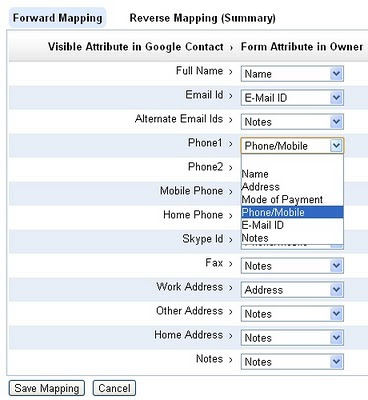

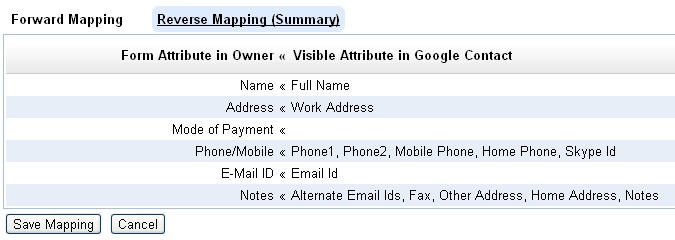
The reverse mapping view shows the details on the multiple source fields getting mapped to a single destination field..


Adding such a field mapping enables importing the Google Contacts directly into the Owners database.

Like wise, it is necessary to add the mapping for exporting Owner details back to Google Contacts.

Exporting of records will be possible once you have authorized iFreeTools to connect on your behalf with Google Contacts, using its data APIs. This will be done when you try to import from the Contacts, that is clicking on Import from Google Contacts and completing the authorization step.

Once authorization step has been completed, you will find a upload icon in the list views for each of records. You can then click on them to selectively export the required records to Google Contacts. Bulk export of contacts into Google Contacts will be supported subsequently. If a contact already exists in Google Contacts, it will be over-written with the full set of details from iFreeTools, based on the field mapping for export.

Hope you like the new feature.

----

A little bit of history, leading up to this feature.

iFreeTools initially had CSV import alone and that too without field mapping. That is, the fields in CSV file are supposed to have specific set of column names expected by our import system. So, to get contacts details from Google Contacts, one had to export the Google Contacts into CSV, map the header names manually in the CSV file and them import them into iFreeTools.

While our initial feature was good enough to help enable import process, we wanted to make things easier for our users. So we added CSV import field mapping feature, to enable mapping the fields in CSV file to those in the database records, enabling CSV files with proprietary column headers to be mapped and imported easily into the database. This mapping could also be saved for reuse in subsequent imports in the same format, typically from the same source.

As all our users have a Google user account or a Google Apps user account, we wanted to integrate well with Google services, particularly Google Contacts. So, we followed up with support for importing Google Contacts using Google’s APIs, directly into the Contacts database in iFreeTools CRM.

To import the contact details using Google APIs into some other database table - may be Leads, Vendors, or may be into a custom database table created in iFreeTools Creator - was still not possible. Uploading contact details back into Google Contacts was also not possible, until today's feature.

We strive to keep adding new features while also improving features to make them easier, for our users. Keep sending in your suggestions on how we can make things better for you. You may use the feedback form in the application or you may send a mail to raj@sahasvat.com