Wednesday, September 1, 2010

Image fields now supported in the Free Online Database builder for Google Apps

We have now added support for defining and using Image fields in iFreeTools. This has been enabled for the Products database in iFreeTools CRM and can also be used for your custom online databases, using iFreeTools Creator.

A sample view of such a database listing is given below in a snapshot of a Travel Desk application built using iFreeTools Creator. The thumbnails of the images are listed in this table view..


When you proceed to the individual record's details page, you can see a bigger image..


When adding/editing records, you have options to either upload a new image or using an already uploaded image from the database of uploaded files. The options available for editing the image fields are show in this below image..


All uploaded files can be managed easily from Back-end Data > Uploaded Files, where CSV files used in importing data are also listed..


You could rename the files and change the descriptions or even, download the file from the details page..


When adding/editing the attribute you could specify the maximum file size for the image. For free versions the options available are 10, 25, 50 and 75 (all sizes in KB). If the uploaded image is of bigger size, the app will try to resize and reduce the file size to confirm to your settings..


You can go in for bigger image sizes when we open up our paid plans or if you go in for our custom deployment options, which enables you to use the 1 GB free quota from Google and to purchase additional resources directly from Google at $0.15/GB/month.

The rates for custom deployments start at $99/year (works out to $8.25/month) for upto 25 users (or $0.33/user/month). For unlimited users, it is just $299/year.

Hope you like our new feature. Do feel free to send in your suggestions using the feedback form in our apps or directly via mail to raj@sahasvat.com

Wednesday, August 18, 2010

Importing Google Contacts into CRM database is now supported

We have now added support in the CRM for Google Apps - iFreeTools CRM, to directly importing Contact entries from your Google Contacts into your CRM database.

In all contacts list views, you will now have an option to "Import from Google Contacts". Clicking on this, Google will prompt you to ask if iFreeTools CRM can be allowed access to your Google Contacts. Once you provide access, you will be redirected to your list of contacts from Google Contacts, from which you could selectively mark and import into your CRM database.

You will have options to list contacts based on Contacts Groups you had assigned in Google Contacts, change the sort order (by default the latest updated entries are listed on top) and the page-size (default : 50).

If a contact is already found in the CRM database, it will be skipped during add. But you could change this behavior to either add a duplicate record or to over-write the existing record with values from Google Contacts.

The following snapshot shows the options available during import. Here "random" is one of my Google Contacts groups.


You can also preview the details of the contact, before you mark it for import. The following snapshot shows such a preview of one of the contacts..


After marking the entries you want to be added to the CRM database, you could then click on "Add Contacts". This will add the marked entries in batches, displaying you the status of the progress.

Once added, you could view these contacts in the CRM database. Apart from the standard details, additional details will be added to the Contact record's Notes attribute. Snapshot of a sample record imported from Google Contacts is given below..


By default, the user who imports the entries will be set as owner for those records. You could use the bulk-edit feature to change values as required.

Hope you find our new feature useful. Keep sending in your suggestions on how you think we can make things better & easier for you.

Wednesday, July 28, 2010

Import Field Mapping now available in iFreeTools CRM / Creator

iFreeTools CRM - the free CRM built over Google App Engine, for use with Google Apps - now supports import field mapping.

Now you can map fields from CSV files imported from other sources by providing the field mapping in an easy to use interface, instead of having to manually mapping them in the CSV file. The source can be address book from Outlook or from Google Contacts exported as CSV, or even from your old CRM/database system.

Such field mapping can be saved and reused multiple times.

To enable this mapping, the import process will now contain 2 steps. First one will be similar to the one which we had earlier, where you could provide the CSV file to be imported..


The next step will be to provide the mapping. By default, the app will try to match the fields in the CSV with the property in iFreeTools record. The unmapped fields will be highlighted as shown below..


You may now provide the mapping for all fields which you want to import into iFreeTools. You could even map multiple fields from CSV to a single field in iFreeTools. The multiple values will be joined together and stored in the property.


You can view the reverse mapping to see if you have covered all important mapping.


In CRM, if the records require an "owner" property, it will be set to the user who performs the import operation. You could later use the Bulk Edit feature to reassign owners as required.

You could also provide a name for the import field mapping, so that you could just select it from the selection box the next time you need to import a similar CSV file.

This feature is also available for custom database apps created using iFreeTools Creator.

Saturday, June 26, 2010

Support for Time Zone, Customizable Home Page and List View Settings, Printable Reports and more..

At iFreeTools, we prioritize our features by listening to our users. Over the past couple of weeks, we have been adding the following features to iFreeTools, based on suggestions from our users..
  • Support for Time Zones
  • Customizable Home Page
  • Support for viewing additional attributes from referenced parent records, in child record's list views.
  • Customizable View Settings (Columns to View, Page Size, etc.,)
  • Printable Reports (List & Chart Views)
  • Pop-up selection for reference values.
  • Option to hide Created On, Updated On and Notes in custom Entities.

Details of the new features are given below :

Support for Time Zones

Until now, we had been displaying date-time values in UTC. Now, users can choose to display the date-time values in their time-zone. Just select the required time-zone value in Admin > App Settings and have it reflected in all views.


Customizable Home Page

You can now configure the home page contents (apart from just the About page, until now), from Admin > App Settings. This will be used as the content of your home page when accessing from your domain.

Within the home page contents, you may use BBCode for safe-rendering of HTML content. The supported BBCode tags you may use are : b, i, u, s, link, img, list with *, size, color and center.

Such a sample content provided in the App Settings is shown below.


The resulting page when accessed via the configured domain is shown below.

Live link of that sample home page : http://acme.sahasvat.com

Support for viewing additional attributes from referenced parent records, in child record's list views

It is typical requirement to view a parent record's attributes along with the child record's attributes in list views - for example, attributes from Account records (parent) shown along with Contact records (child).

Earlier we only had a link to the Account record details; but now, you can view values from the Account record right in the list of Contact records.

When creating or editing Custom Views, you can select the attributes you want to be displayed and it will get shown in the client.

[Screen-shot of this feature, shown along with next feature]

Customizable View Settings (Columns to View, Page Size, etc.,)

Apart from including the parent attributes in the list views of client (previous item), you can also specify the columns you want to make visible from the client's attributes. Other attributes will still be loaded in the client, but will not be visible. They can be toggled for visibility from Instant Details, as was possible earlier.

You can also specify the page-size and optionally disable the Instant Details and search-while-typing features. This can be configured at a Custom View level or at the app level from Admin > App Settings.

The following image shows the new features of selecting additional attributes from referenced parent records and customizable view settings..


Printable Reports (List & Chart Views)

Now all list views and chart views have an option to have a printable view. This view will be without the header, side-bars, footers and advertisements.

This feature is accessible from under Options in the list views and as a top-level button in chart views.

Pop-up selection for reference values.

Until now the reference value selection was possible only from select boxes. While this is fine if the number of values is less, this can be difficult to use in case there are more options from which to choose from.

From now on, if the options are more than 20, iFreeTools will automatically provide a pop-up option to choose the reference value. This option will enable selection from a list view, where you can sort and search the records and then select the required record instance for reference.

Option to hide Created On, Updated On and Notes in custom Entities.

This feature is applicable for iFreeTools Creator - which allows creating custom entities. You may now opt to *hide* the default attributes added to an custom entity, which are date-time stamps for Created On and Updated On and the text attribute Notes.

This only hides the attributes and can be re-enabled back again at any time.

--

By choosing to use our products, you show your commitment to us. Our way of thanking you for this, is to listen to your feedback and acting on it, so as to help you use our tools better.

Keep sending in your suggestions.

Monday, May 31, 2010

iFreeTools now opens up for all Google Apps User Accounts

iFreeTools CRM - our free CRM built over Google App Engine and iFreeTools Creator - our free online database application builder, which were - until now - open only to users with Google Accounts, have now been opened up to allow all Google Apps users directly.

Thanks to adopting new features enabled recently by Google, for its Google App Engine platform, Google Apps users need not look for work-arounds and request separate deployments to use iFreeTools.

Users can also continue to login with Google Accounts, as before.

Once user has logged in using either Google Accounts or Google Apps User Accounts, our app will check for the email-id of the logged-in user to identify the user and to authorize operations. We also plan to enable full OpenID support, very soon.

What was until now just "CRM for Google App Engine" is now happy to call itself the "CRM for Google Apps, built over Google App Engine".

Hope you find our new feature useful. Feel free to check out our apps and send in your feedback.

Thursday, May 27, 2010

Feature Preview : Email Templates and Bulk Emails

We are now working on have rolled in a new feature for iFreeTools, which is Email Templates and Bulk Emails.

Email Templates enable you to automate mailing work by allowing you to define templates, which can include fields from the records and then to send out mails with their values replaced (mail-merge).

This new feature will now be supported for records which have an Email attribute.

For iFreeTools CRM, this will include Lead, Contact, Vendor and Case records.

And, for iFreeTools Creator - where one can create their own custom database application online - String attributes can now be marked as email and will automatically get this feature enabled for those Entities.

The following screen-shot image shows Owner's Email ID property, from the sample app used in our walk-through for using iFreeTools Creator, being marked as an Email Property. The transform function is also used to trim the values to remove spaces and convert it to lower-case.

Similarly, we can also mark the Tenant's Email ID property.

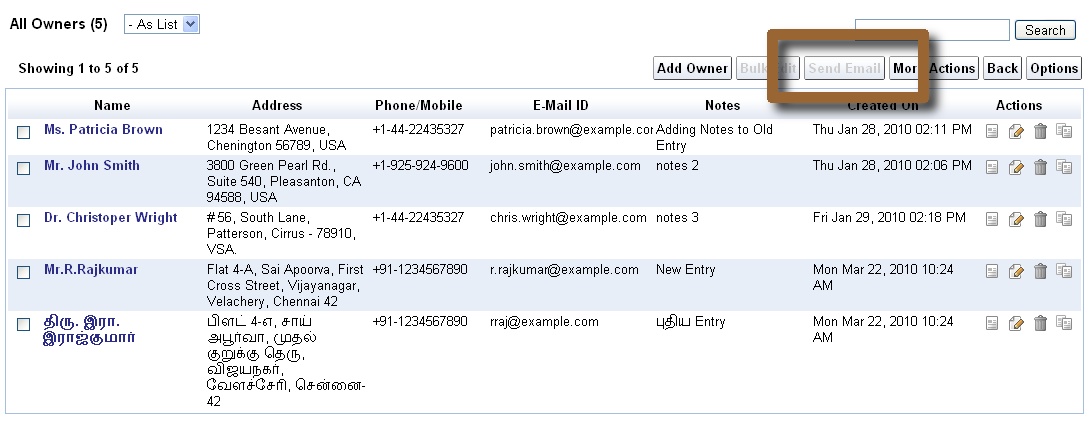
Once this is marked, a new action button will become available in the list views. For the CRM app, as mentioned earlier, this has been pre-configured for Leads, Contacts, Vendors and Cases.

In the above view, the option is disabled, because no records have been selected.

Let us select a few records to proceed to check out how this feature would work. Shown below are 3 record selected before triggering Send Email


The default view will be as given below. Since this is a preview release of the feature, the message on the top informs you that Notification Tasks will alone be added in Preview status - which means actual emails will not be sent, for now.

You will have an option to just send an email once or to save the template providing the name, description, type of email and sharing options. Admin users can create templates for themselves or for all users, like it is possible with our Custom Views and Custom Actions.

We will now proceed to create a Welcome Email template, and make it available for all users. One can include fields from the records, which are listed on the left on the content box and can be clicked to be inserted into the contents. You can also use BBCode. The supported BBCode tags are : b, i, u, s (strike), url, quote, img, list with *, size, color, center, code and p.

Fields are supported within mail subject too, as shown in the screen-shot below..


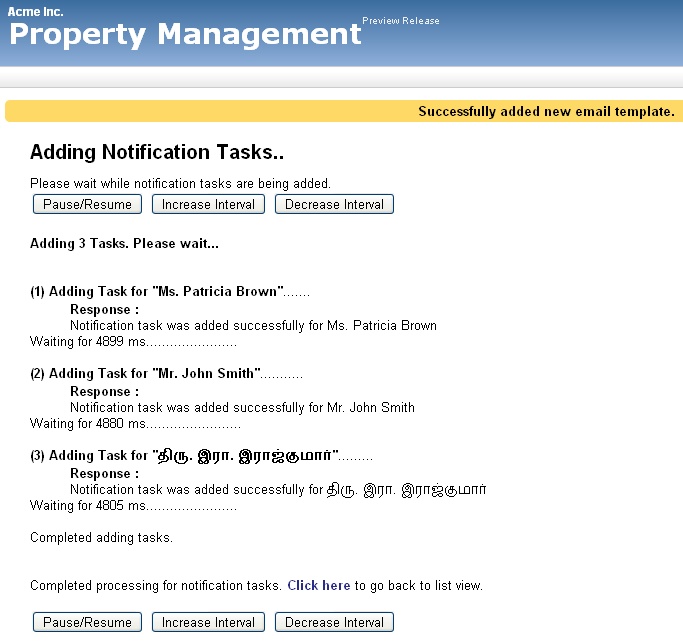
Proceeding to send email, you will see a page as shown below. Notice the message on the top, that the email template has been added. The notification tasks will be added sequentially for each of the record instances.


Let us now check for the results.

Clicking on the Notification Templates, we find the template listed..


Proceeding to the Notification Tasks view, we find 3 records present with status as Preview. Also notice how the values have been replaced with actual values from Owner records.


And, this is one of the Notification Task's details view..


Notice that I had done a mistake in my template code by providing HTML instead of BBCode for the content "Personal Executive" - happens when switching between writing a blog post and the app, taking screen shots :-). Anyway, we can edit the template to correct this, which we will be doing now while explaining another important feature, which is Automatic Dupe Detection for Bulk-Emails.

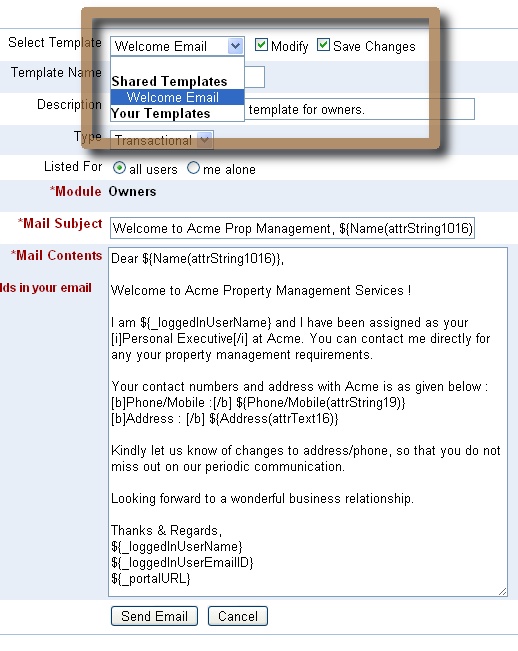
To explain how Automatic Dupe Detection for Bulk-Emails works, we will again trigger the Send Email from the Owners list view with all the records selected and proceed to the email-template view as given below. Now, select the template from the selection box and click on Modify and Save options next to that box. Edit the content as required and then proceed.


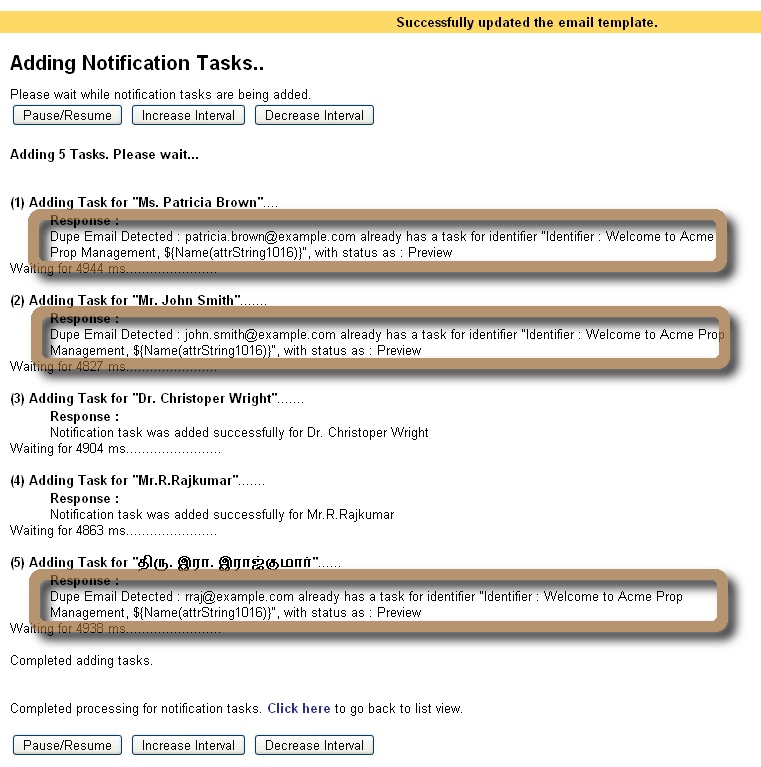
In the subsequent page, we will see the results for the notification tasks being added, as shown below. The engine will detect dupe emails based on the notification identifier, which for now is taken to be the subject of the email. So, notification tasks will be added only for those records which have not already been mailed with the same subject.


This is a preview release of the Email Templates and Bulk Emails feature. When this is fully enabled, the tasks would have triggered emails and end up with status as Executed.

(Update : Bulk emails feature has been fully enabled for all paid, single-tenant deployments.)

For each of the notified users, a record will be added in Notified Users, under Admin. This will be used to enable users to opt-out of notifications, if they prefer to do so - confirming to CAN-SPAM regulations for Promotional emails.

We plan to integrate with SMS gateways too, which will follow the similar flow, except that the Subject will be ignored and the Content will have to be short.

(Update : Bulk SMS from your online database has also been enabled, by integrating iFreeTools with Twilio.)

Play around with our iFreeTools and let us know your feedback on how we can make things better.

Friday, April 2, 2010

Support for Unique Field Constraints in iFreeTools

Though Google App Engine does not yet support modifiable unique fields, we believe that this is an important requirement for many business apps. So, we have added this feature in our framework layer over Google App Engine to enable unique fields in our Free CRM for Google Apps Engine and in our online database app-builder for Google App Engine.

This feature has been turned on for the email-id fields in iFreeTools CRM - for Lead, Vendor, Contact and User records. The value entered for these fields will be trimmed to remove spaces and converted to lower case, before a unique constraint check is performed, when adding or modifying records.

We will see how this feature can be used in a custom application over iFreeTools Creator. Vehicle registration details in one case where unique values are to be stored for each of the vehicle records. You do not want a duplicate entry to be entered inadvertently into your database. So for the this field, we will enable the Unique constraint and also use the transformation functions trim and upper.


Now, we will proceed to add a record with a duplicate value for this unique field. Notice how the value is given in a lower case and with additional spaces prefixed and suffixed..


When trying to save this record, we will be shown the error message as given in the image below. You will also find that the value has been trimmed and turned to upper-case..


The unique constraints are also enforced during bulk import of data from CSV.

Hope you find the feature useful. Feel free to send in your feedback.